





Kodachrome 25 Presets
$34.90
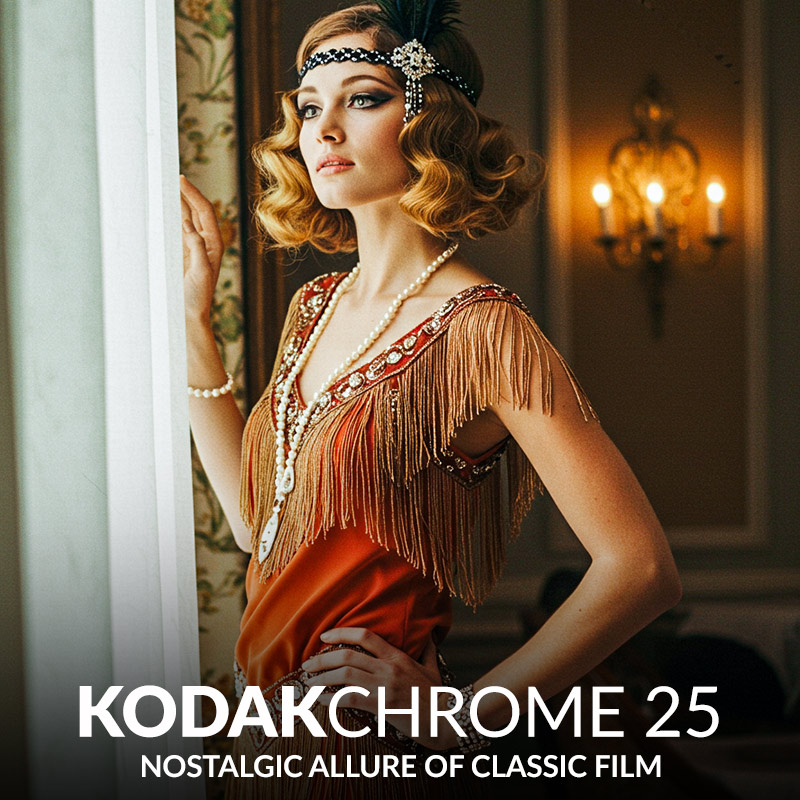
Step back in time with Kodachrome 25 Presets for Lightroom! These presets capture the legendary warmth and clarity of Kodachrome 25 film, giving your photos a timeless, professional edge.
Perfect for portraits, landscapes, and everyday moments, they deliver stunning results in one click, saving you hours of editing. Get yours now and transform your photos into nostalgic masterpieces!
✓ 8 Kodachrome 25 Presets
✓ 20 Clean Edit Presets
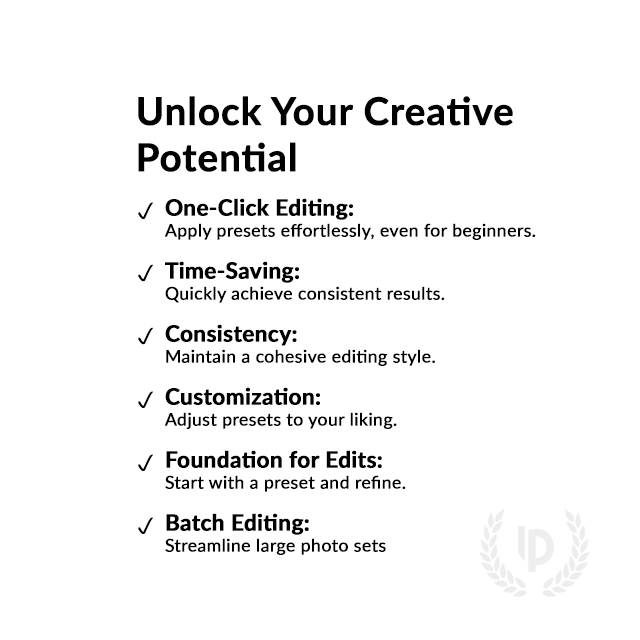
✓ Professional Look with 1-Click
✓ Easy to use – Beginner-friendly
✓ Create your own Signature Style
✓ Instant Digital Download
 For Desktop & Mobile
Create eye-catching images.
“Didn’t think they’d make such a difference, but wow, my pics look pro. Super easy to use too.” – Emma W.
Nostalgic Colors: Kodachrome 25 Presets for You
Your photos look flat and boring, and you’re tired of spending ages trying to fix them.
Here’s the fix—Kodachrome 25 Presets for Lightroom. One click, and your photos come to life with vibrant, timeless colors. No more wasted hours or disappointment. What I’m selling is the easy way to get photos you’ll be proud to show off, hassle-free.
What's Included:
What’s Included
» 8 Kodachrome 25 Presets
» 20 Clean Edit Presets
» 1x Instruction Guide (PDF)
» File formats: XMP, DNG
» 8 DNG Files
» Free Upgrades
Clean Edit Presets
Use the Clean Edit Presets to make basic adjustments and set the foundation for your image. They also speed-up your workflow and offer you endless style combinations.
 You receive this presets as digital download
immediately after purchase.
Compatible with:

Desktop
» Adobe® Lightroom® 7.5 or later
» Adobe® Camera Raw 10.5 or later
Mobile
» Adobe® Lightroom Mobile
» Android & iPhone
Get 8 Kodachrome 25
Film Simulation Presets

Kodachrome 25 base

Kodachrome 25 vivid

Kodachrome 25 cool

Kodachrome 25 warm

Kodachrome 25 pulled

Kodachrome 25 pushed

Kodachrome 25 flat

Kodachrome 25 balance
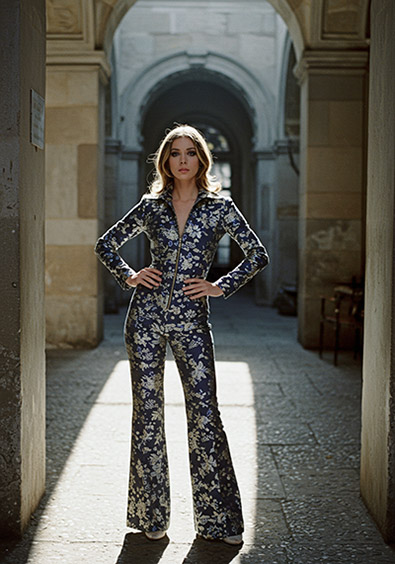
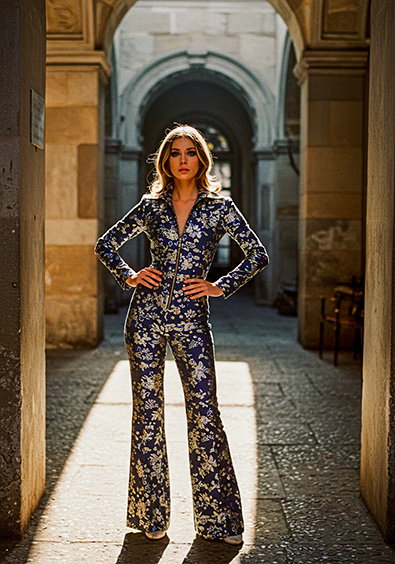
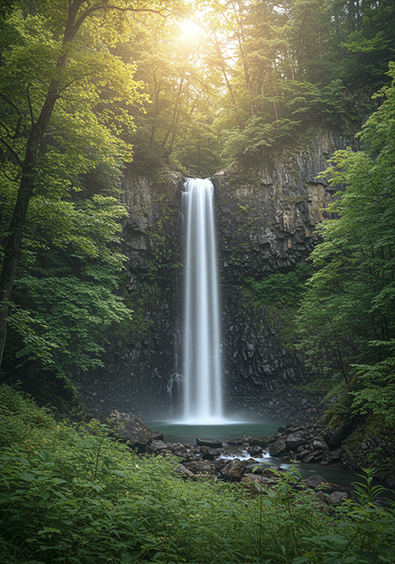
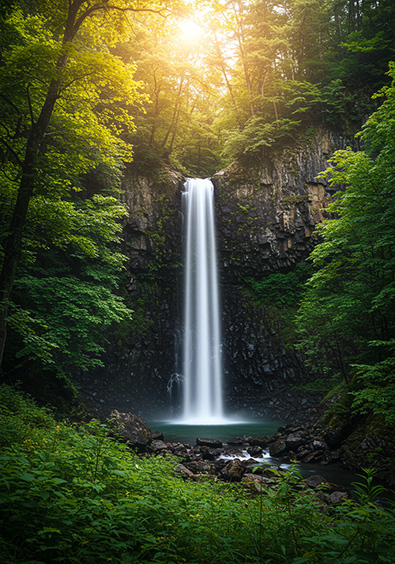
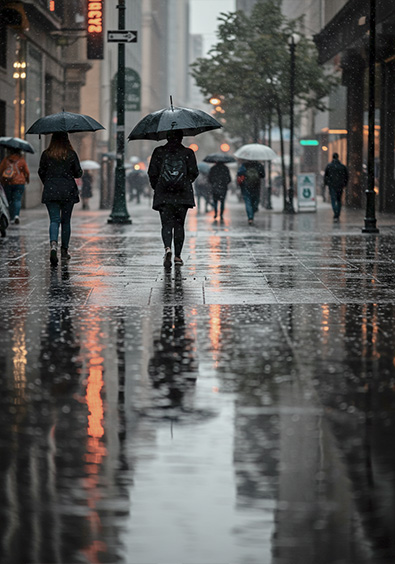
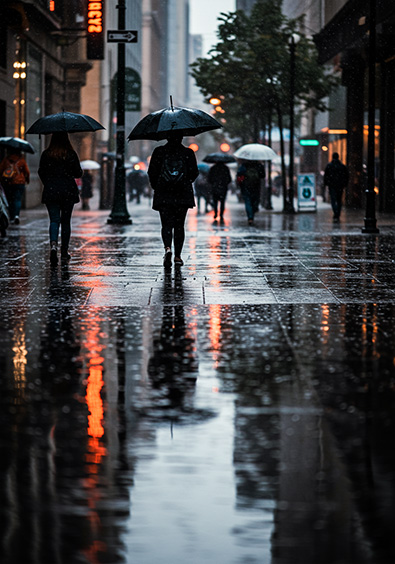






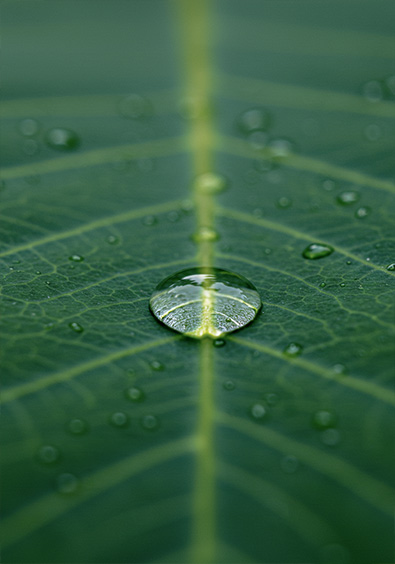
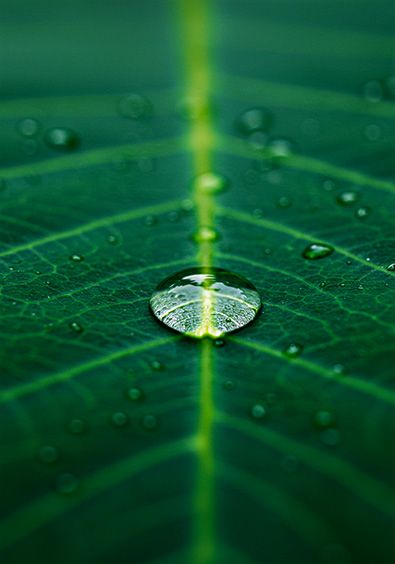


Find your perfect film look in our film preset library, discover every available Kodak Lightroom Preset.

Professional Kodakchrome 25 Film Simulation Presets.
Image: Kodak
Why was the Kodachrome 25 Film Popular?
The Kodachrome 25 film was a hit with photographers for a bunch of cool reasons. It had this super fine grain that made every photo sharp and detailed—perfect for capturing stunning landscapes or portraits.
The colors? Oh, they popped—vibrant and true-to-life, especially in bright sunlight. With its low ISO of 25, it thrived on sunny days, making it a travel and nature photography fave. Plus, those shots lasted forever without fading. It’s no surprise it became a classic!
Kodachrome 25 Specs:
- ISO: 25
- Grain: Super fine, sharp images
- Colors: Vibrant, accurate
- Best for: Bright conditions
- Archival: Long-lasting, fade-resistant
Do you have Tips for the Presets?
Tips & Tricks for Kodachrome 25 Presets
- Use natural light: Shoot near windows or outside for brighter, better photos.
- Hold steady: Use both hands or a tripod to avoid blurry shots.
- Get closer: Zoom in or step closer to make your subject the focus.
- Try different angles: Shoot from above, below, or the side for unique shots.
- Simplify the background: Keep it plain so your subject stands out.
- Use the rule of thirds: Imagine a tic-tac-toe grid and place your subject where lines meet.
- Take multiple shots: More photos mean more chances to get a great one.
- Edit lightly: Adjust brightness or color a little—don’t go overboard.
How to Download & Install the Presets?
As soon as your payment went through, you receive the download link direct by email.
Just follow the easy instructions at How to install Lightroom Presets and start using them on your desktop or mobile device.
How to use Lightroom Presets?
- The Kodachrome 25 Filters for Lightroom are crafted by professionals to enhance the visual look of photos. These Kodak presets are designed to complement a wide range of images, ensuring consistent results.
- The Presets are available for the the Desktop and Mobile App versions of Lightroom. The mobile app for Android and iPhone offers you nearly the same features like the desktop version to edit and transform your photos on the go.
- You can capture your photos using a DSLR, mirrorless camera, point & shoot camera, or even your smartphone. Import the image into Lightroom and apply the desired preset. This straightforward process allows you to achieve professional results with just a few clicks.
- Please note that the final outcome of a preset can vary depending on the characteristics of the original photograph, such as white balance, exposure, tones, and settings.
- After applying a preset, you can start to make manual adjustments to fine-tune the image to your liking. Lightroom offers a large set of sliders and tools, allowing you to tweak many aspects of the image until you achieve the desired outcome.
- In some instances, a preset may alter the skin tone of persons captured in the photograph. In this cases, utilize Lightroom’s powerful color adjustment tools to refine the skin tone until it appears natural and flattering.
- For optimal results, it’s recommended to use presets on well-exposed, high-quality RAW & JPG photographs. Images that are overexposed, underexposed, or of poor quality may yield unsatisfactory results when presets are applied.
How to use the Clean Edit Presets?
With our Clean Edit Presets you can set the perfect foundation of your image by adjusting for example white balance, exposure, whites, tones, etc. Each clean edit preset changes only one value, without overwriting other adjustments and values.
Can the Presets used in Photoshop?
You can use the Presets in XMP format also in Adobe Photoshop
Installing Presets in Adobe Camera Raw (ACR) 10.3+ (Windows & Mac)
- Open your image in Adobe Photoshop.
- At the top menue click on Filter and select “Camera Raw Filter”.
- On the right you see the word “Basic” click the small burger next to it. Then, click “Load Settings”.
- Choose the .xmp file(s) from downloaded and unzipped folder. Then click on “Load” button.
- To apply a preset, click on OK button.
How about License/Terms?
License Terms
The Presets are licensed for individual use only. Resale or redistribution is strictly prohibited. This non-transferable license is limited to the original purchaser and does not extend to companies or partnerships.
No Refunds
All sales of these digital products are final with no refunds, returns, or exchanges permitted due to their downloadable nature.
By purchasing, you agree to these terms.
Customers who viewed this presets also viewed:
Kodak Portra 160
Kodak Ektar 25
Kodachrome 64
Kodak Ektar 100
Kodak Ektachrome E100
4 reviews for Kodachrome 25 Presets
Only logged in customers who have purchased this product may leave a review.
Related products


$34.90


$34.90


$34.90
-67%

Original price was: $244.30.$79.90Current price is: $79.90.


$34.90
Jennifer W. –
Colors are very beautiful. I use for my travel pictures and makes them look classic, like from old magazine.
Robert T. –
The color rendition is incredible. It gives greens and blues a vibrant, yet natural pop that is very difficult to achieve manually. Recommended!
Sophia P. –
Absolutely in love with this pack. It gives my photos that perfect, timeless 70s slide film aesthetic. The colors are rich but not cartoonish. Good preset collection!
Grayson A. –
The result are very good.