


Home | Articles | Adobe Lightroom
Lightroom vs Photoshop: What Each One Actually Does Best
Richard ♦ updated July 14, 2026 ♦ 17 min read

Lightroom organizes and edits your whole photo library with global, non-destructive adjustments. Photoshop edits one image at a time with pixel-level control: layers, compositing, and object removal. Most photographers only need Lightroom. Add Photoshop only when a shot needs work Lightroom’s tools still can’t do.
“Lightroom or Photoshop” is one of the most searched photography questions on Google. Most photographers don’t need both.
This guide covers what each app does best, the subscription cost, and how they hand off files. Deeper dives: pricing, using both together, and presets in Photoshop.
I’ve spent a decade building film-emulation presets at Legendary Presets for photographers who live in Lightroom daily. This reflects that real workflow, not Adobe’s feature list.
Key Takeaways
- Lightroom edits your whole shoot at once; Photoshop edits one image at a time
- Both apps come bundled in the $19.99/month Photography Plan, so most photographers already have access to both
- Lightroom’s 2026 AI tools now handle sky swaps and object removal, jobs that used to require Photoshop
- The Lightroom-to-Photoshop handoff creates a second file, not a linked edit, a common surprise for new users
- Lightroom presets don’t work natively in Photoshop; two workarounds are covered below
- For most preset-driven workflows, Lightroom alone covers 90% or more of the job
01.
Lightroom vs Photoshop: The Core Difference
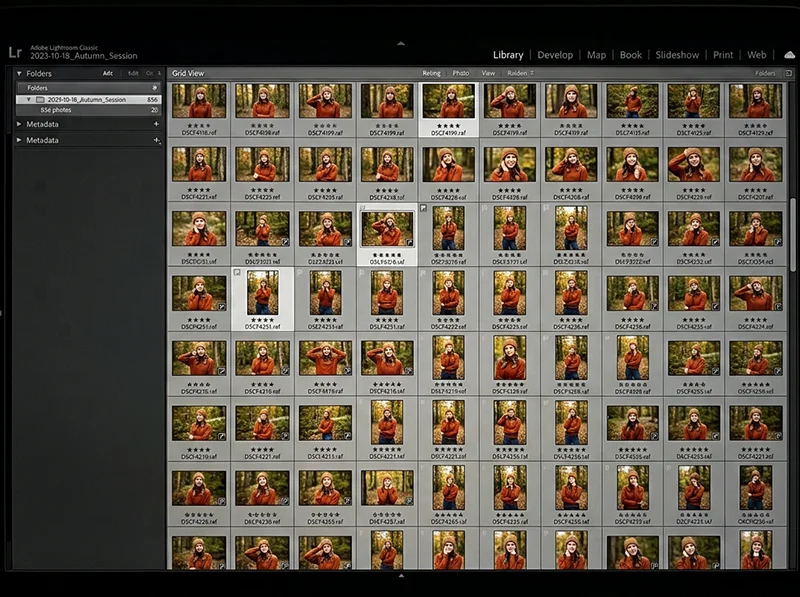
Lightroom is a photo management and editing app built to process hundreds or thousands of images at once. Photoshop is a pixel-editing app built to manipulate one image with total control. Everything else in this comparison flows from that single distinction.
Lightroom:
- Stores your photos in a catalog, or syncs them to the cloud depending on the version
- Tracks every edit as a non-destructive instruction, so the original file never changes
- Lets you copy one edit and paste it across an entire shoot in seconds
- Tools are organized around a photography workflow: import, cull, edit, export
Photoshop:
- Opens and edits a single file at a time, with no catalog or library system
- Gives you layers and masks stacked on top of the original pixels
- Lets you change anything about that one image without touching the rest of your library
- Built for a wider audience: graphic designers, illustrators, and compositing artists, with photographers as one group among many
That origin still shows in the interface. Lightroom was built for photographers first, and it still feels that way. Photoshop’s tools are organized around image manipulation in general, which is why it can feel overbuilt for a simple exposure fix.
We build our own film-emulation presets exclusively for Lightroom, because that’s where the vast majority of photographers do their actual day-to-day editing. Presets apply instantly across a whole shoot in Lightroom. In Photoshop, there’s no native preset system at all, a gap we’ll cover in detail further down.
02.
Why This Decision Matters Right Now
Getting this choice wrong costs real money and real time, and the cost compounds depending on your situation:
- Wasted subscription cost: paying for the full Photography Plan when you only ever use Lightroom means paying for a tool you open once a year, if that
- Wasted learning time: Photoshop’s layer-based workflow has a real learning curve, and photographers who only need global color and exposure adjustments end up fighting a tool built for compositing artists
- Wasted editing hours: working photographers doing weddings, portraits, or product shoots lose billable hours round-tripping files for edits Lightroom can now do natively
- Outdated advice: the standard “get both” recommendation was written before Lightroom’s 2026 AI updates closed much of the gap
The bigger shift is what changed inside Lightroom itself. As of June 2026, Lightroom’s Generative Remove and AI masking tools handle sky replacement, subject isolation, and complex object removal directly inside the Develop module (source: PetaPixel, “Adobe Adds More User Control to AI Features Inside Lightroom and Photoshop”, retrieved July 2026). Those were textbook reasons to open Photoshop as recently as 2023.
This affects every skill level differently. Beginners waste money on a plan they don’t use. Working photographers waste billable hours on tasks Lightroom already handles on its own.
03.
What Lightroom Does Best
Lightroom’s core strength is processing volume without sacrificing quality on any single image.
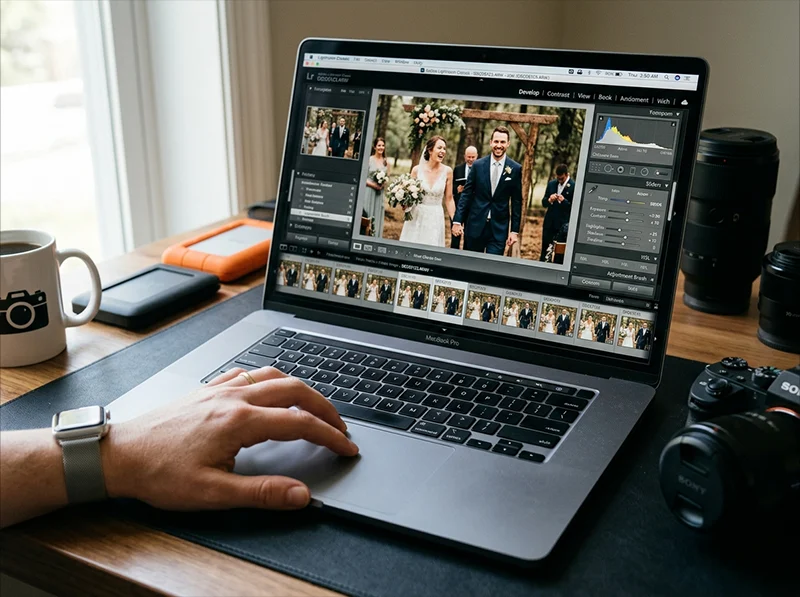
- Batch editing: copy one photo’s adjustments and paste them across an entire shoot in seconds, or sync settings across hundreds of selected images at once
- Non-destructive RAW processing: every adjustment is stored as an instruction, not a pixel change, so you can return to the original file at any time
- Catalog-based organization: star ratings, flags, keywords, and collections keep a shoot of 2,000 images searchable and sortable
- AI-assisted culling: Lightroom’s Assisted Culling now evaluates individual faces in group shots, checking each person’s eyes are open and sharp, then automatically stacks near-duplicate frames and suggests the strongest one
- Presets: apply a full film look to a single image or a thousand images with one click
For a wedding or event shoot with 1,500+ frames, Lightroom’s batch tools alone can cut editing time from days to hours. That’s the exact workflow our presets are built around.

My pro tip: Don’t skip the culling step to save time. A messy edit pass on unculled photos always takes longer than culling first, because you end up re-editing frames you should have deleted an hour earlier.
04.
What Photoshop Does Best
Photoshop’s strength is unlimited control over a single image, at the cost of batch efficiency.
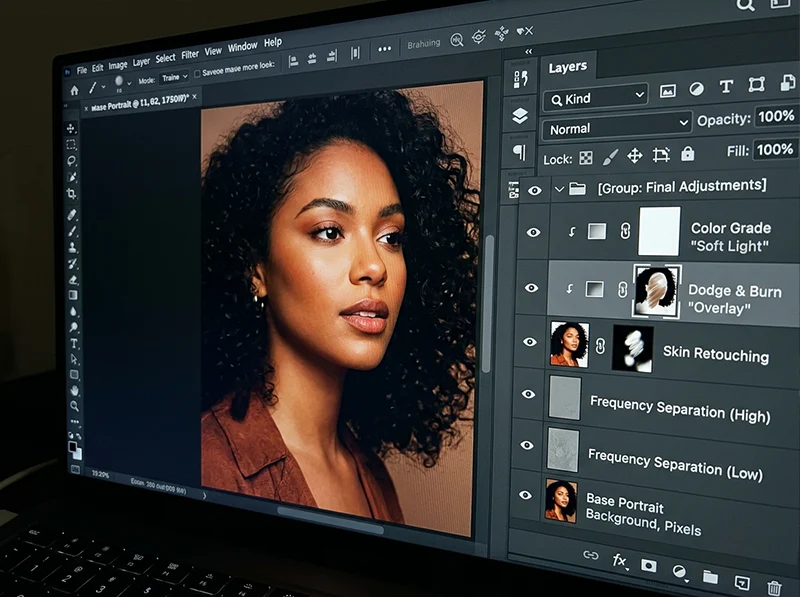
- Layers and masks: stack multiple versions of an image, blend them, and adjust each layer’s opacity and blend mode independently
- Advanced compositing: combine multiple photos into one image, a wedding photographer merging a group shot where nobody blinked, for example
- Pixel-level retouching: skin retouching, dodge and burn, frequency separation, and detailed healing work beyond what Lightroom’s brush tools offer
- Content-Aware and generative tools: remove complex objects and fill the gap with realistic, context-aware pixels
- Text and graphic design: add typography, vector shapes, and design elements for social posts, album covers, or print layouts
Photoshop is where you go when a single image needs work Lightroom genuinely can’t do: a composite of three exposures, a client’s request to remove a specific person from a group photo, or fine art print preparation with soft proofing and precise color management.
The tradeoff is speed. Everything in Photoshop happens to one file at a time. There’s no equivalent to selecting 200 photos and applying the same fix in one click.
05.
Lightroom and Photoshop Subscription: What It Actually Costs
Both apps ship inside the same Adobe Creative Cloud plans, so the pricing question isn’t “Lightroom or Photoshop,” it’s which plan tier you need.
| Plan | Price (annual, billed monthly) | What You Get |
| Lightroom (1TB) | $11.99/month | Lightroom + Lightroom Classic, no Photoshop, 1TB cloud storage |
| Photography (1TB) | $19.99/month | Lightroom + Lightroom Classic + Photoshop (desktop and mobile), 1TB cloud storage |
| Creative Cloud Pro | $69.99/month ($34.99 intro) | 20+ apps including Lightroom and Photoshop, plus Firefly generative credits |
Paying month-to-month without an annual commitment costs more: $17.99/month for Lightroom alone, or $29.99/month for the Photography Plan. Prepaying annually drops the Photography Plan to $239.88/year, the cheapest way to get both apps.
The Lightroom-only plan already gets you Lightroom Classic, so you’re not locked into cloud storage limits if you’d rather manage files locally. Adding Photoshop costs an extra $8/month over the Lightroom-only plan, not a separate subscription.
For the full breakdown, including what happens if you cancel Photoshop but keep your presets, or whether the free trial actually includes both apps, see Lightroom and Photoshop Subscription: What You’re Actually Paying For.
06.
How Lightroom and Photoshop Actually Work Together
This is the part most comparisons skip entirely: what actually happens to your file when you send it from Lightroom to Photoshop.
Right-click a photo in Lightroom and choose Edit In > Edit in Adobe Photoshop. Lightroom generates a new file, either a PSD or TIFF depending on your external editing preferences, and hands it to Photoshop. When you save that file in Photoshop, it lands back in your Lightroom catalog stacked next to the original RAW.
Here’s the detail almost nobody explains clearly: that round trip creates a second file, not a linked edit. Your original RAW stays untouched, and the Photoshop version becomes its own separate image in your library. Edit the RAW again later and none of those changes reach the Photoshop copy. You’d need to redo the round trip from scratch.
This causes three specific problems in real workflows:
- Storage bloat: a 16-bit TIFF round trip commonly runs 150 to 300MB per image, which adds up fast across a 500-image wedding shoot
- Catalog confusion: your image count doubles for every photo you round-trip, which throws off culling counts and delivery totals if you’re not tracking it
- Color mismatches: if your external editing preference is set to sRGB instead of ProPhoto RGB, you lose color data on the handoff that you won’t get back
My pro tip: Set your external editing preference to ProPhoto RGB, 16-bit, TIFF, before you ever click Edit In. Check it once in Lightroom’s preferences and you’ll never lose color data on a round trip again.
The workflow works well once you understand it. It’s the assumption that it’s a “linked” edit that trips people up. For the complete step-by-step, including Smart Object handling and how this differs between Lightroom and Lightroom Classic, see Using Lightroom and Photoshop Together: How It Works.
07.
Can You Use Lightroom Presets in Photoshop?
Not natively. Lightroom presets are built on Lightroom’s Develop module settings, and Photoshop has no equivalent panel that reads those same instructions. You have two real workarounds:
- Apply the preset in Lightroom first, then round-trip: send the file to Photoshop with Edit In after the look is already baked in. This is the cleanest option and preserves the preset’s full color science exactly as built.
- Convert the preset into a Photoshop Action: a separate file format that replicates some, not all, of a preset’s adjustments as a recorded sequence of steps. Neither option is a perfect substitute; Actions can’t replicate profile-based color science the way a true Lightroom preset can, so film-emulation looks in particular tend to shift slightly in translation.
For most photographers running a preset-based workflow, the cleanest answer is to apply the preset in Lightroom first, then round-trip to Photoshop only for the retouching Lightroom can’t do. Full instructions and a working Action conversion method are in Can You Use Lightroom Presets in Photoshop?
08.
The 2026 Shift: How Lightroom’s AI Tools Are Closing the Gap
For years, the standard advice was clear: serious photographers need both apps. That advice is getting harder to defend in 2026, for a few concrete reasons:
- Generative Remove now lives inside Lightroom: it handles complex object removal, distracting background elements, tourists in a travel shot, a stray cable in a product photo, directly inside the Develop module, per the June 2026 Adobe update cited above
- It now works offline: as of that same update, Generative Remove runs on an on-device AI model, closing a gap that sent photographers into Photoshop by default for over a decade
- AI-assisted editing is the default, not the exception: a December 2025 VSCO survey of 401 photographers found 83 percent already use AI tools in their workflow, with working photographers using AI weekly or daily at double the rate of hobbyists (source: PetaPixel, “Nearly 90% of Surveyed Working Photographers Are Using AI,” April 2026, retrieved July 2026)
Here’s my contrarian take after watching this play out with our customers: most photographers who say they “need both apps” are running a habit from five years ago, not a current requirement. I still open Photoshop for true compositing and client-requested retouching. I stopped opening it for sky swaps and object removal the day Lightroom’s masking tools got good enough to do it in the window I was already editing in.
That doesn’t mean Photoshop is obsolete. Layered compositing, advanced retouching, and graphic design work still need it. It means the list of reasons to open it is shorter than most 2023-era comparison articles assume, and shrinking every update cycle.
09.
Recommended Presets for a Lightroom-First Workflow
If Lightroom is doing most of your editing, your preset choice matters more than it would in a Photoshop-heavy workflow, since it’s carrying more of the actual look.
- Kodak Portra Preset Collection: warm, true-to-skin color science built for portrait and wedding work. Best for: shoots where you need a finished, consistent look applied across hundreds of frames without touching Photoshop.
- Fujifilm Pro Presets Collection: cooler tones and punchier greens for travel and outdoor work. Best for: landscape and travel photographers who batch-edit large shoots.
- Black and White Essentials: film-based monochrome conversions. Best for: street and documentary work where you want a strong starting point before minor manual tweaks.
I’ve used all three of these on paid shoots, and the honest surprise was how rarely I still reach for Photoshop after applying one and adjusting masks locally. Five years ago, that same shoot would have meant a Photoshop pass on every single frame.
Browse the full preset shop for the complete collection, or start with our guide to the best Lightroom presets for photographers if you’re not sure which look fits your work.
10.
Which One Should You Actually Use?
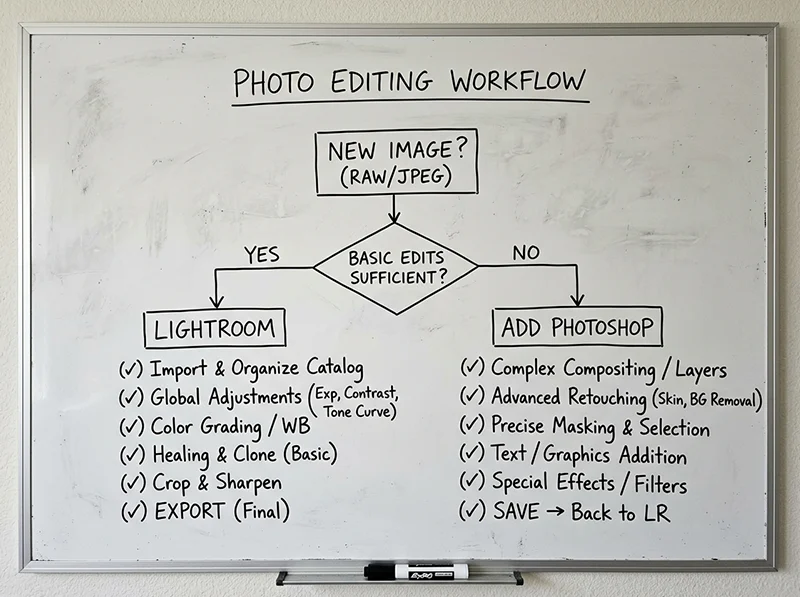
Use Lightroom alone if:
- You shoot weddings, portraits, events, or any high-volume work
- You apply presets as your main editing tool
- Your edits are global: exposure, color, tone, masking-based local adjustments
- You want one subscription instead of two, and lower monthly cost
Add Photoshop if:
- You regularly composite multiple images into one
- You do heavy pixel-level retouching (beauty, fashion, fine art)
- You design graphics, text overlays, or print layouts alongside your photography
- A client specifically requests edits Lightroom’s masking tools can’t achieve
Start here if you’re new:
- Install Lightroom and learn the Develop module first. Most editing tasks live there.
- Apply presets to build a consistent style before you touch manual sliders.
- Only add Photoshop once you hit a specific task Lightroom genuinely can’t do. You’ll know it when you hit it: usually a composite or a complex retouch.
11.
Lightroom vs Photoshop at a Glance
| Feature | Lightroom | Photoshop |
| Best for | Batch editing, organizing, global adjustments | Pixel-level retouching, compositing |
| Editing style | Non-destructive, instruction-based | Layers, both destructive and non-destructive |
| Presets | Native, one-click application | Not native, requires Action conversion |
| AI object removal | Yes, on-device as of June 2026 | Yes, Content-Aware Fill and Generative Fill |
| Price (annual, billed monthly) | $11.99/month | Included at $19.99/month (Photography Plan) |
| Batch processing | Yes, core feature | No, one file at a time |
12.
FAQ
Do I need both Lightroom and Photoshop?
No. Most photographers only need Lightroom for organizing, batch editing, and applying presets. Add Photoshop only if you regularly composite images or do pixel-level retouching Lightroom’s masking tools can’t handle.
Is Photoshop included with Lightroom automatically?
No. The Lightroom-only plan ($11.99/month) doesn’t include Photoshop. You need the Photography Plan ($19.99/month) to get both apps in one subscription (source: Adobe Creative Cloud Photography plan comparison, retrieved July 2026).
Can Photoshop do everything Lightroom can do?
Mostly, through Adobe Camera Raw, which mirrors Lightroom’s Develop tools inside Photoshop. What Photoshop lacks is Lightroom’s catalog system: batch editing, star ratings, and searchable keywording across thousands of images at once.
Will my Lightroom edits transfer if I switch to Photoshop only?
Only partially. Basic RAW adjustments carry over through Camera Raw, but you lose Lightroom’s catalog, collections, and one-click preset workflow entirely. Most photographers who try this switch back within a few months.
Is Lightroom’s AI good enough to replace Photoshop for object removal?
For most everyday tasks, yes. Lightroom’s Generative Remove now handles distracting objects, cables, and background clutter directly in the Develop module. Complex compositing and detailed beauty retouching still need Photoshop’s layer-based tools.
Which one should a beginner learn first?
Lightroom. It gets you to a finished, professional-looking edit faster, teaches non-destructive editing habits from day one, and covers the vast majority of what a working photographer actually does.
13.
The Bottom Line
If you remember one thing from this guide, remember this: Lightroom handles the edit for the vast majority of your shoots, and Photoshop handles the exception.
Start with Lightroom. Learn the Develop module, build a preset-driven workflow, and get comfortable with masking before you assume you need Photoshop at all. Add Photoshop only when you hit a specific wall: a composite, a complex retouch, a design task Lightroom truly can’t do.
Adobe’s AI updates keep shrinking that wall every few months, so revisit the question periodically instead of assuming your 2023 workflow still applies in 2026.
Ready to build your Lightroom-first workflow? Start with the Kodak Portra Preset Collection and see how far a single click gets you before you ever need to open Photoshop.
Continue Learning
Lightroom vs Photoshop Cluster:
- Lightroom and Photoshop Subscription: What You’re Actually Paying For
- Using Lightroom and Photoshop Together: How It Works
- Can You Use Lightroom Presets in Photoshop?
Related Adobe Lightroom Guides:
- Lightroom vs Lightroom Classic: Which One Do You Actually Need?
- The Best Lightroom Presets for Photographers in 2026
- How to Use Lightroom Presets: The Complete Workflow Guide
Richard is a commercial and editorial photographer with over 15 years behind the lens. He’s shot on film and digital across three continents, and still keeps a Nikon F3 loaded with Kodak Portra on his desk. At LegendaryPresets, he leads preset development – studying actual film scans to make sure every stock behaves like the real thing.