


-29%



Black & White Portraits
Original price was: $69.90.$49.90Current price is: $49.90.
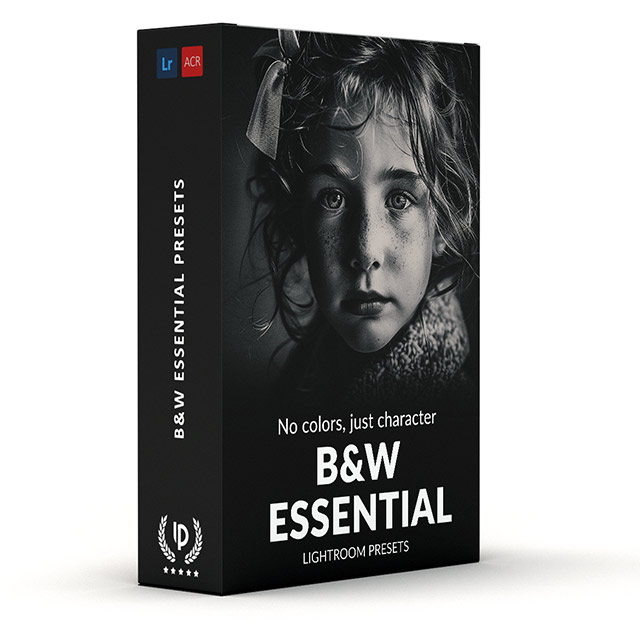
Tired of spending countless hours trying to achieve that perfect black and white look? Our “Black and White Portrait Presets” for Lightroom are the solution you’ve been waiting for. With just a few clicks, you’ll transform your images into stunning monochrome masterpieces.
Don’t miss this opportunity – elevate your photography game today!
✓ 31 B&W Portrait Presets for Lightroom
✓ Professional Look with 1-Click
✓ Including Clean Edit Presets
✓ Easy to use – Beginner-friendly
✓ Create your own Signature Style
✓ Instant Digital Download
 For Desktop & Mobile
Monochrome Magic at Your Fingertips
“Absolutely love them! I used to spend ages fiddling with sliders to get that perfect black & white look, now it takes just a few clicks.”
Benjamin L. Content Creator
Elevate Your Workflow: Take Control of Your B&W Edits
Unlock the timeless beauty of black and white photography with our “Black and White Essential Presets” for Lightroom.
Crafted with passion and expertise, these presets will breathe life into your images, capturing the essence of every moment with rich tones and captivating contrasts.
What's Included:
What’s Included
» 18 B&W Portrait Presets
» 13 Clean Edit Presets
» 1x Instruction Guide (PDF)
» 18 DNG Files
» File formats: XMP, DNG
» Free Upgrades
Clean Edit Presets
Use the Clean Edit Presets to make basic adjustments and set the foundation for your image. They also speed-up your workflow and offer you endless style combinations.
 You receive this presets as digital download
immediately after purchase.
Compatible with:

Desktop
» Adobe® Lightroom® 7.5 or later
» Adobe® Camera Raw 10.5 or later
Mobile
» Adobe® Lightroom Mobile
» Android & iPhone


FAQ
How to Download & Install the Presets?
As soon as your payment went through, you receive the download link direct by email.
Just follow the easy instructions at How to install Lightroom Presets and start using them on your desktop or mobile device.
How to use Lightroom Presets?
- The Lightroom B&W Presets are crafted by professionals to enhance the visual look of photos. These presets are designed to complement a wide range of images, ensuring consistent results.
- The Presets are available for the the Desktop and Mobile App versions of Lightroom. The mobile app for Android and iPhone offers you nearly the same features like the desktop version to edit and transform your photos on the go.
- You can capture your photos using a DSLR, mirrorless camera, point & shoot camera, or even your smartphone. Import the image into Lightroom and apply the desired preset. This straightforward process allows you to achieve professional results with just a few clicks.
- Please note that the final outcome of a preset can vary depending on the characteristics of the original photograph, such as white balance, exposure, tones, and settings.
- After applying a preset, you can start to make manual adjustments to fine-tune the image to your liking. Lightroom offers a large set of sliders and tools, allowing you to tweak many aspects of the image until you achieve the desired outcome.
- In some instances, a preset may alter the skin tone of persons captured in the photograph. In this cases, utilize Lightroom’s powerful color adjustment tools to refine the skin tone until it appears natural and flattering.
- For optimal results, it’s recommended to use presets on well-exposed, high-quality RAW & JPG photographs. Images that are overexposed, underexposed, or of poor quality may yield unsatisfactory results when presets are applied.
How to use the Clean Edit Presets?
With our Clean Edit Presets you can set the perfect foundation of your image by adjusting for example white balance, exposure, whites, tones, etc. Each clean edit preset changes only one value, without overwriting other adjustments and values.
Can the Presets used in Photoshop?
You can use the Presets in XMP format also in Adobe Photoshop
Installing Presets in Adobe Camera Raw (ACR) 10.3+ (Windows & Mac)
- Open your image in Adobe Photoshop.
- At the top menue click on Filter and select “Camera Raw Filter”.
- On the right you see the word “Basic” click the small burger next to it. Then, click “Load Settings”.
- Choose the .xmp file(s) from downloaded and unzipped folder. Then click on “Load” button.
- To apply a preset, click on OK button.
Do you have Tips for the BW Preset?
Tips & Tricks for Using Black and White Photo Filters
- Pick Your Perfect Preset: Different presets have different vibes. Browse and choose one that matches the mood you want for your photo.
- Adjust Exposure: Make sure your photo is neither too bright nor too dark.
- Fine-Tune: Presets are a starting point! Play with the sliders to adjust brightness, contrast, or grain to make the black and white look just how you like it.
- Click, Tweak, Repeat: Don’t be afraid to experiment! Try different presets on the same photo and see which one makes your picture sing.
- Black & White Balance: Some presets might make whites too bright or blacks too dark. Use the sliders to find the perfect balance between light and shadow.
- Play with Clarity: Adjust sharpness to bring out details without making it look unnatural.
- Less is More: It’s easy to go overboard with edits. Use a light touch on the sliders and avoid making your photo look unnatural.
- Before & After Check: Use the split-screen view to compare your photo before and after the preset. This helps you see the exact changes the preset makes.
Do you have BW Photography Tips?
Tips & Tricks for Black and White Photos
- Look for Contrast – dark shadows and bright highlights make black and white photos more interesting.
- Pay attention to Textures and Patterns – these stand out better without color distractions.
- Use simple Compositions – avoid busy scenes that can look messy without color.
- Shoot in bright light or harsh Shadows for more dramatic effects.
- Capture people’s Expressions and Emotions which show clearly in black and white.
- Look for strong Geometric shapes and Leading lines to guide the viewer’s eye.
- Simplify your Subjects – remove distractions and focus on what’s important in your frame.
How about License/Terms?
License Terms
The Presets are licensed for individual use only. Resale or redistribution is strictly prohibited. This non-transferable license is limited to the original purchaser and does not extend to companies or partnerships.
No Refunds
All sales of these digital products are final with no refunds, returns, or exchanges permitted due to their downloadable nature.
By purchasing, you agree to these terms.
Customers who viewed this presets also viewed:
- Agfa Scala 200X Presets
- Fujifilm Neopan 400 Presets
- Fujifilm Neopan Acros 100 Presets
- Kodak Panatomic X Presets
- Kodak T-MAX 100 Presets
- Kodak T-MAX 3200 Presets
- Kodak T-MAX 400 Presets
- Kodak TRI-X 400
We have a large selection of Black & White filters, give your images the unique monochrome look and explore more Black and White Lightroom Presets here.
7 reviews for Black & White Portraits
Only logged in customers who have purchased this product may leave a review.
Related products


$34.90
-38%


Original price was: $79.90.$49.90Current price is: $49.90.
-57%

Original price was: $139.60.$59.90Current price is: $59.90.

$34.90


$34.90
-29%


Original price was: $69.90.$49.90Current price is: $49.90.

$34.90
-67%


Original price was: $209.40.$69.90Current price is: $69.90.
Julia W. (verified owner) –
Timeless Beauty in Every Shot I’ve always struggled to find the right black-and-white preset that enhances my portraits without losing details. Legendary Presets nailed it! These presets brought out the depth and emotion in my photos effortlessly. Worth every penny!
Michael S. (verified owner) –
Exceptional Quality for Portrait Work As a professional photographer, these Black and White Portrait Presets have elevated my work to a new level. They add such a dramatic and polished touch to every image. My clients love the results, and so do I!
Emmanuel L. (verified owner) –
Made My Portraits Stand Out These presets are a game-changer! The Black and White Portrait Presets are exactly what I needed to give my photos a more artistic edge. Easy to use and perfect for both beginners and pros. My Instagram feed has never looked better!
Alex T. (verified owner) –
Classic Vibe with a Modern Twist I’ve tried a lot of black-and-white presets before, but none compare to these. The contrast and tonal balance are spot on, and they give my portraits a timeless, yet fresh, look. Highly recommend for any photographer looking to up their game!
Grace F. (verified owner) –
Perfect for Capturing Emotion I’m absolutely in love with these presets! They’ve completely transformed how I edit my black-and-white portraits. The mood they create is perfect for capturing emotion and depth in my shots. Couldn’t be happier with this purchase!
Ryan B. (verified owner) –
Easy to Use and Stunning Results I’ve been using Legendary Presets for a while, and this Black and White Portrait pack is my favorite. The presets are super easy to apply, and the results are always stunning. My editing time has decreased, and the quality has only improved.
Saskia A. (verified owner) –
Incredible Detail and Depth These black-and-white presets have completely transformed my portrait photography. They bring out incredible detail and depth, giving my photos a professional, dramatic feel. I’m so impressed with how easy they are to use!