Home | Articles | Adobe Lightroom
Lightroom Classic: What It Is, How It Works, and Who Should Use It
Richard ♦ June 28, 2026 ♦ 13 min read

Lightroom Classic is Adobe’s desktop photo editing and organizing software. It stores your photos on your own hard drive, organizes them inside a database called a catalog, and gives you a full set of professional tools for editing, culling, printing, and exporting. It has existed since 2007, first as plain “Lightroom,” then renamed “Lightroom Classic” in 2017 when Adobe launched a separate cloud-based version.
The short version of who needs it: photographers who manage large photo libraries, shoot in a professional context, or need features like tethered shooting, plugin support, and print output. If that’s not you, the cloud-based Lightroom is probably the better starting point.
Key Takeaways
- Lightroom Classic is a desktop-only app available for Mac and Windows, first released in 2007
- It stores your photos on your own hard drive or external drive; nothing goes to the cloud unless you choose to sync it
- It organizes your photos inside a catalog: a local database that tracks every edit, label, and piece of metadata
- Classic includes features the cloud-based Lightroom doesn’t: tethered shooting, plugin support, the Print module, the Book module, and soft proofing
- Both apps are included in the same Adobe subscription at $9.99/month (annual), so choosing Classic costs nothing extra
- Classic is the industry standard for professional photographers managing client work, studio shoots, and large archives
01.
What Is Lightroom Classic?
Lightroom Classic is Adobe’s desktop photo workflow application. It covers the full editing process from import to export: you bring photos in from a camera card or hard drive, organize and rate them, make non-destructive edits in the Develop module, and export finished files in any format you need.

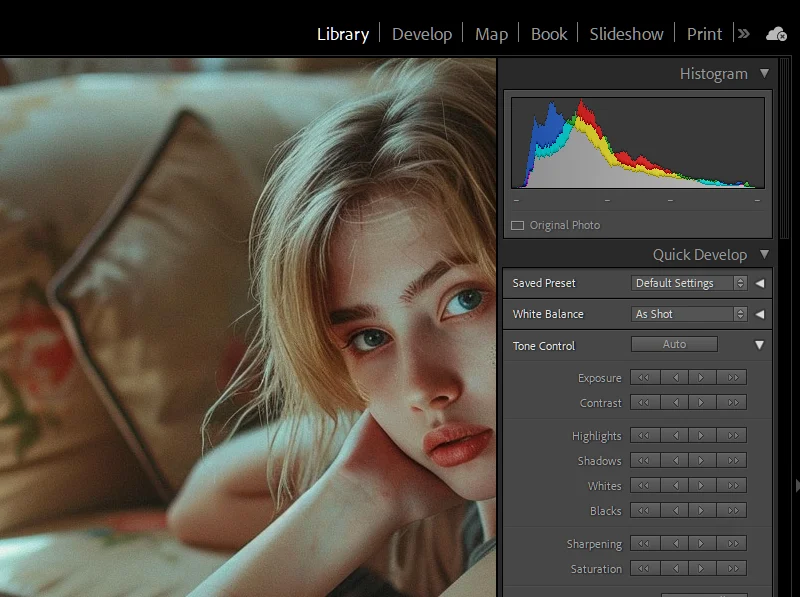
Lightroom Classic’s module system divides the workflow into dedicated stages: Library for organizing, Develop for editing, and specialized modules for print and output. The word “Classic” was added in 2017. Before that, it was simply called Lightroom, the only version that existed. Adobe launched a new cloud-based app (now called Lightroom) and renamed the original to avoid confusion. The rename caused more confusion than it solved, but the app itself didn’t change in any meaningful way.
Non-destructive editing means your original RAW files are never touched. Every edit you make (exposure, color, cropping) is stored as a set of instructions in the catalog. You can undo anything, return to the original at any time, and the source file stays intact on your drive.
Lightroom Classic uses a module-based interface:
- Library module: import, browse, rate, label, and organize your photos
- Develop module: all your editing and color work
- Map module: places geotagged photos on a world map
- Book module: design and order photo books via Blurb
- Slideshow module: build simple slideshows for client presentations
- Print module: full print layout controls, contact sheets, and soft proofing
- Web module: export HTML-based web galleries
Most photographers spend 90% of their time between Library and Develop.
02.
The Catalog System, Explained in Plain English
This is where most people get confused, so I’ll keep it simple.
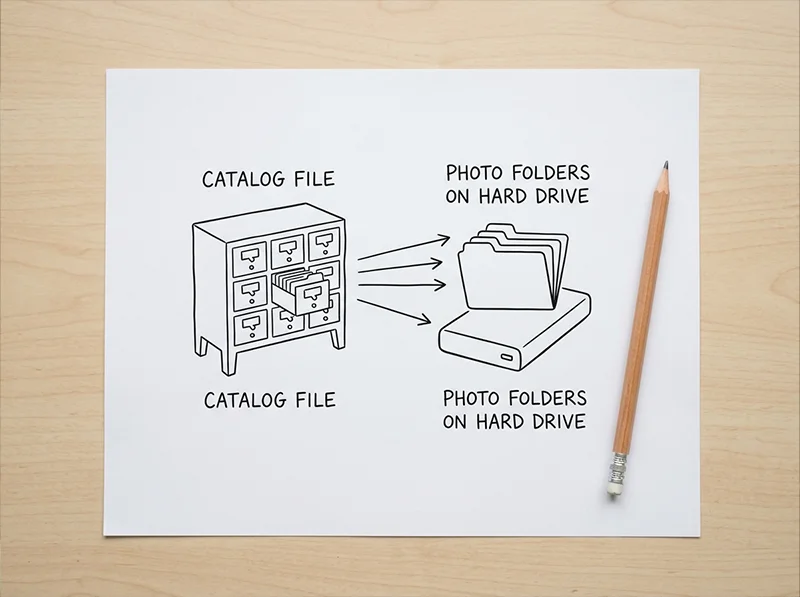
A catalog is a database file that lives on your computer. It doesn’t contain your photos. It contains information about your photos: where they’re stored on your drive, what edits you’ve made, what star rating you gave them, what collections they’re in, and every piece of metadata attached to each file.
The catalog doesn’t contain your photos. It contains information about them: edits, ratings, and location on your drive. Think of it like a spreadsheet that tracks your entire photo library. The photos themselves stay in their original folders on your hard drive. The catalog just knows where they are and what you’ve done to them.
Why this matters in practice:
- If you move a photo in Finder or Windows Explorer without telling Lightroom Classic, it loses track of the file and shows a “missing photo” error
- If your catalog file gets corrupted or deleted, you lose your edit history and organization, but not the original photos
- You should back up your catalog regularly. Lightroom Classic prompts you to do this on exit; don’t skip it
- You can have multiple catalogs for different projects. Some wedding photographers keep one catalog per client
Most photographers work from a single catalog for their entire library. It’s simpler and makes searching across your full archive much easier.

My pro tip: Keep your catalog on your internal drive (where it runs fastest) and your photos on an external drive. Back up both separately.
03.
What Lightroom Classic Can Do That Lightroom Can’t
These are the features exclusive to Classic. If any of them are part of your workflow, Classic is your app.
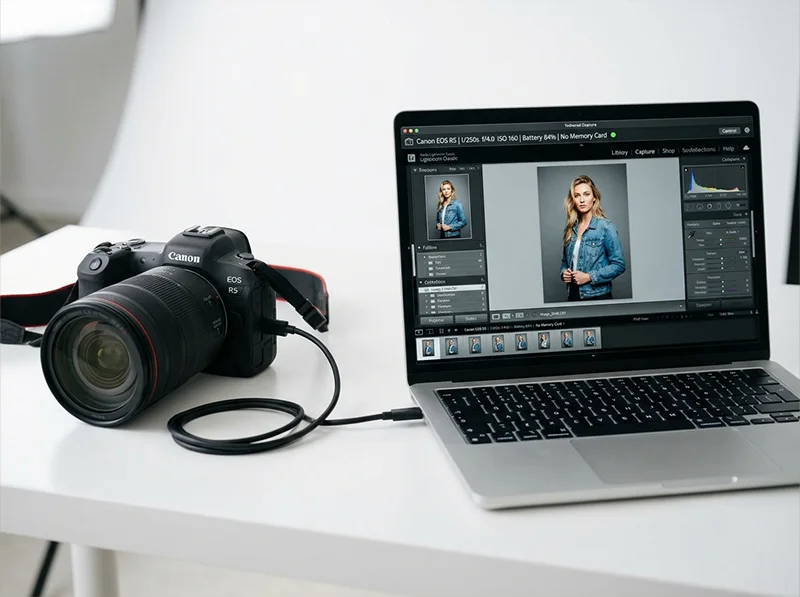
Tethered shooting. Connect your camera to your computer via USB and trigger shots directly from Lightroom Classic. Images land in your catalog immediately, ready to edit. This is the standard setup for studio photography, product photography, and commercial work.
Tethered shooting (connecting a camera directly to Lightroom Classic) is one of the features exclusive to Classic and essential for studio and commercial photographers. Plugin support. Classic works with third-party plugins through Adobe’s Plugin Manager. This includes:
- Export plugins for client gallery platforms: Pixieset, SmugMug, Shootproof, Zenfolio
- Specialized editing tools: Topaz DeNoise AI, Nik Collection, ON1 Photo RAW
- Workflow tools for stock agencies and photo services
Lightroom (CC) has no plugin system.
Print module with soft proofing. Full print layout controls for contact sheets, packages, and custom prints. Soft proofing lets you preview how an image will look in a specific printer profile or color space before printing, so you can correct for differences between screen and paper.
Book module. Design photo books in Lightroom Classic and send them to Blurb directly. You get full control over layout, text, and page design without leaving the app.
Full EXIF and IPTC metadata editing. Classic lets you view and edit every metadata field in a photo’s file: copyright information, GPS coordinates, camera and lens data, caption fields, and the IPTC fields required for editorial and news agency submissions.
Smart Collections and advanced organization. Create rule-based collections that automatically populate based on criteria you define: star rating, date range, camera used, keyword, edit status. This is how fast editors build culling workflows at scale.
04.
Who Actually Needs Lightroom Classic?
Classic is the right app if any of the following describes you.
Working professional photographers
- Wedding, portrait, commercial, and photojournalism workflows all rely on Classic’s catalog system, plugin integrations, and export controls
- Managing 2,000 images from a wedding shoot in a structured, searchable catalog is something Classic does well and Lightroom (CC) does not
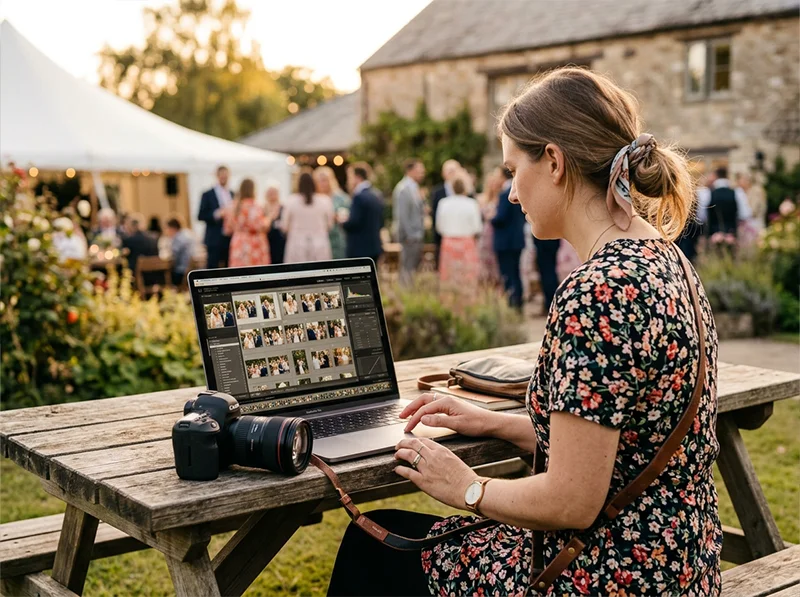
Wedding and event photographers working with high image volumes are among the clearest use cases for Lightroom Classic’s catalog and batch editing workflow. Studio and product photographers
- If you shoot tethered (camera connected directly to a laptop on set), Classic is the only option
- Lightroom (CC) doesn’t support tethered shooting at all
Photographers with large archives
- Classic’s local storage model is far more cost-effective than cloud storage at volume
- A photographer with 5TB of images would pay around $49.96/month just for cloud storage in Lightroom (CC), on top of the base subscription (Source: Adobe Creative Cloud pricing)
Batch editors
- Classic’s Library module is built for speed at volume
- Apply edits to hundreds of photos simultaneously, sync settings across an entire shoot, and use Auto Sync to adjust a selected batch in real time
- If you edit 500 photos from an event and need a consistent grade across all of them, Classic handles it significantly faster
Print and fine art photographers
- Classic’s Print module and soft proofing are the standard tools for delivering fine art prints, photo books, or images to print labs
- Lightroom (CC) has no print module
Plugin-dependent workflows
- If your editing workflow includes Topaz DeNoise AI, the Nik Collection, or direct export to a client gallery service, Classic is the only option
- None of these plugins work in Lightroom (CC)
05.
Who Doesn’t Actually Need Lightroom Classic?
This is the part most comparisons skip.
The photography industry has spent years telling beginners that Classic is the “serious” choice and that learning it is a rite of passage. That framing does a lot of people a disservice.
You probably don’t need Classic if:
- Your primary editing tool is a preset: applying a film look, adjusting exposure, exporting to share
- You edit mostly on your phone or move between devices regularly
- You shoot for social media, travel content, or personal projects with no client delivery requirements
- You’re building your editing skills and want to focus on color and light, not file management
- You don’t need tethering, print output, or external plugins
For preset-based editing workflows, Lightroom (CC) is often the faster, more convenient option. Presets installed on desktop sync automatically to the mobile app. You can apply a Lightroom film preset on your phone and export straight to Instagram in a few minutes. Classic requires extra steps to get any of that working on mobile.
The photographers who genuinely need Classic know it almost immediately, usually because they hit a wall trying to do tethered shooting or export to a client gallery and discover Lightroom (CC) doesn’t support it.
If you haven’t hit that wall yet, start with Lightroom (CC) and switch when you need to. The editing skills transfer completely.
06.
Lightroom Classic vs. Lightroom: Quick Reference
Feature Lightroom Classic Lightroom (CC) Where it runs Desktop (Mac, Windows) Desktop, mobile, web Photo storage Local hard drive Adobe cloud (1TB included) Preset sync to mobile Manual Automatic Tethered shooting Yes No Plugin support Yes No Print module Yes No Best for Pros, studios, large archives Presets, mobile editing, beginners For a full side-by-side breakdown, see Lightroom vs Lightroom Classic: Which One Do You Actually Need?
07.
I Learned Classic First. Here’s What I’d Tell My Younger Self.
When I started shooting seriously, Lightroom Classic was the only option. There was no cloud version, no mobile app, no alternative. You learned the catalog system or you were lost.
I still use Classic for serious client work. But I’d start differently if I were beginning today. I spent weeks getting my head around catalogs, folder structures, and import settings before I edited a single decent photo. Looking back, a lot of that time was spent managing the tool, not learning to see light or understand color.
If I were starting today, I’d open Lightroom (CC) first. I’d apply a film preset from Legendary Presets to a photo I actually liked, understand why it worked, and build from there. That’s a better foundation than memorizing what a catalog backup file is.
Classic is still where I do my serious work. Client shoots, batch editing, tethered sessions. It’s the right tool for all of that. But it’s not the right starting point for everyone, and there’s nothing wrong with admitting that.
If you’re unsure which version fits your current setup, the Which Lightroom Should I Use? A Decision Guide walks through it question by question.
08.
FAQ
Is Lightroom Classic being discontinued?
No. Adobe has confirmed multiple times that Lightroom Classic is not going away. As of 2026, both apps receive the same AI feature updates simultaneously. The concern about Classic being retired was common in 2018 and 2019 when the cloud version launched, but it hasn’t happened and Adobe continues to invest in Classic development.
Can I use Lightroom Classic on my phone?
No. Lightroom Classic is a desktop application for Mac and Windows only. There is no native mobile version of Classic. If you want to edit on your phone, you need the Lightroom mobile app, which is part of Lightroom (CC). You can sync specific photos from Classic to the mobile app, but your Classic presets and catalog don’t travel with them.
Do Lightroom presets work in Classic?
Yes. Classic supports both XMP and DNG preset formats in the Develop module. If you’ve purchased presets, including Lightroom film presets, they install directly into Classic’s preset panel and are available in any photo you’re editing. See How to Install Lightroom Presets for the step-by-step process.
What happens if I lose my Lightroom Classic catalog?
Your original photos are safe. They live on your hard drive separately from the catalog. What you lose is your edit history, ratings, collections, and organizational structure. Adobe recommends backing up your catalog regularly; Classic prompts you to do this when you quit the app. Keep at least one backup copy of your catalog on a separate drive or cloud storage service.
Is Lightroom Classic included in the Photography Plan?
Yes. The Photography Plan (9.99/month annual) both include Lightroom Classic and the cloud-based Lightroom. You don’t pay extra for Classic. (Source: Adobe Creative Cloud Photography plans)
Related Articles
- Lightroom vs Lightroom Classic: Which One Do You Actually Need?
- Which Lightroom Should I Use? A Decision Guide
- How to Install Lightroom Presets
- Lightroom Film Presets: The Complete Guide
- Lightroom Mobile Presets: The Complete Guide for iPhone and Android
Richard is a commercial and editorial photographer with over 15 years behind the lens. He’s shot on film and digital across three continents, and still keeps a Nikon F3 loaded with Kodak Portra on his desk. At LegendaryPresets, he leads preset development – studying actual film scans to make sure every stock behaves like the real thing.