Home | Articles | Adobe Lightroom
Which Lightroom Should I Use? A Decision Guide
Richard ♦ June 28, 2026 ♦ 12 min read

The answer to this question comes down to four things: where you store your photos, whether you shoot tethered, whether you need mobile editing, and how central presets are to your workflow. Answer those four and the choice is obvious.
This guide walks you through each one. If you want the broader feature comparison first, start with Lightroom vs Lightroom Classic: Which One Do You Actually Need?
Key Takeaways
- Use Lightroom Classic if you manage a large library, shoot in a professional context, or need tethering, print output, or plugin support
- Use Lightroom (CC) if you edit on mobile, want your photos synced across devices, or are building your editing skills from scratch
- Most photographers using presets as their main editing tool are better served by Lightroom (CC), because presets sync to mobile automatically
- Both apps are included in the same Adobe subscription at $9.99/month (annual). You are not choosing based on price
- You can use both at the same time; many working photographers do
01.
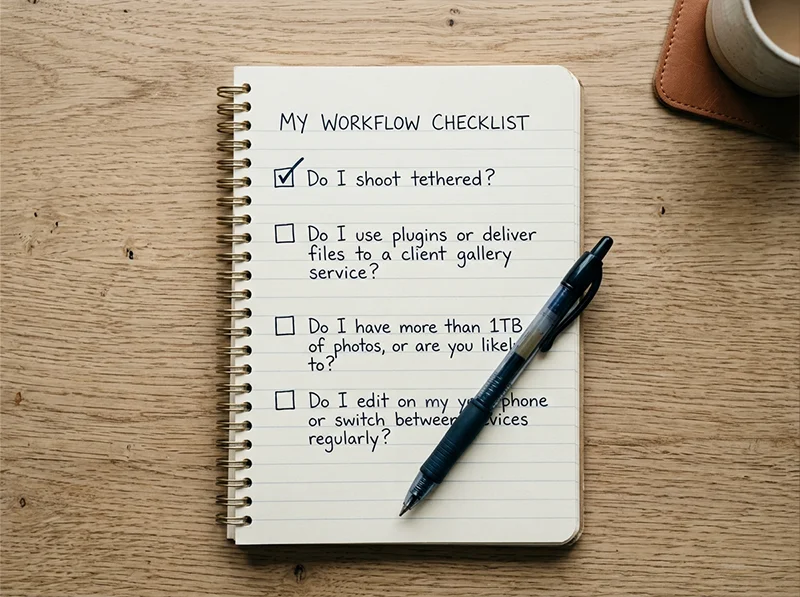
Start Here: 4 Questions That Decide It
Work through these in order. The first question that gives you a clear answer is your answer.

Four questions cover the decision for most photographers. The first one that applies to you is your answer. Question 1: Do you shoot tethered?
Tethered shooting means connecting your camera to a computer via USB so that images transfer directly into Lightroom as you shoot. No card-swapping, no delay. It’s standard in studio photography, product photography, and commercial work.
- Yes, I shoot tethered: use Lightroom Classic. Lightroom (CC) has no tethered shooting support at all.
- No: move to Question 2.
Question 2: Do you use plugins or deliver files to a client gallery service?
Plugins include tools like Topaz DeNoise AI, the Nik Collection, and export integrations for Pixieset, SmugMug, Shootproof, or Zenfolio.
- Yes, I rely on plugins: use Lightroom Classic. Lightroom (CC) has no plugin system.
- No: move to Question 3.
Question 3: Do you have more than 1TB of photos, or are you likely to?
Lightroom (CC) stores your photos in Adobe’s cloud. The base plan includes 1TB. Additional storage costs $9.99 per terabyte per month (source: Adobe Creative Cloud pricing). A photographer with 4TB of images would pay around $39.97/month on top of the base plan.
Lightroom Classic stores photos on your own drive. A 4TB external drive costs about $80 to $100 as a one-time purchase.
- Yes, I have or expect to have more than 1TB: use Lightroom Classic unless you’re comfortable with the ongoing cloud storage cost.
- No, 1TB is enough: move to Question 4.
Question 4: Do you edit on your phone or switch between devices regularly?
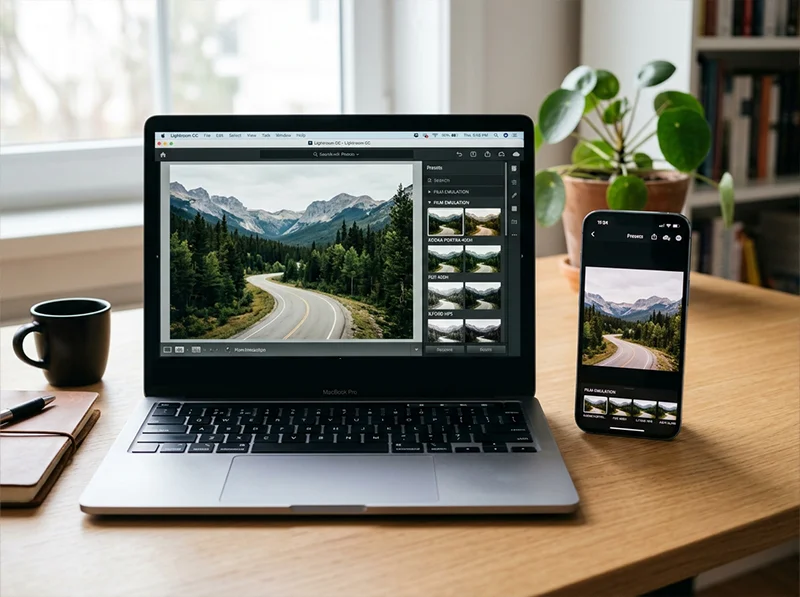
- Yes, mobile editing matters to me: use Lightroom (CC). It has full cross-device sync. Presets sync automatically to the mobile app. You can start an edit on your laptop and finish it on your phone.
- No, I edit only at my desktop: either app works. Read the sections below to
02.
If Your Answer Is Lightroom Classic
Classic is the right app if you answered yes to tethering, plugins, or large archive size. Here’s what that actually means for your day-to-day work.

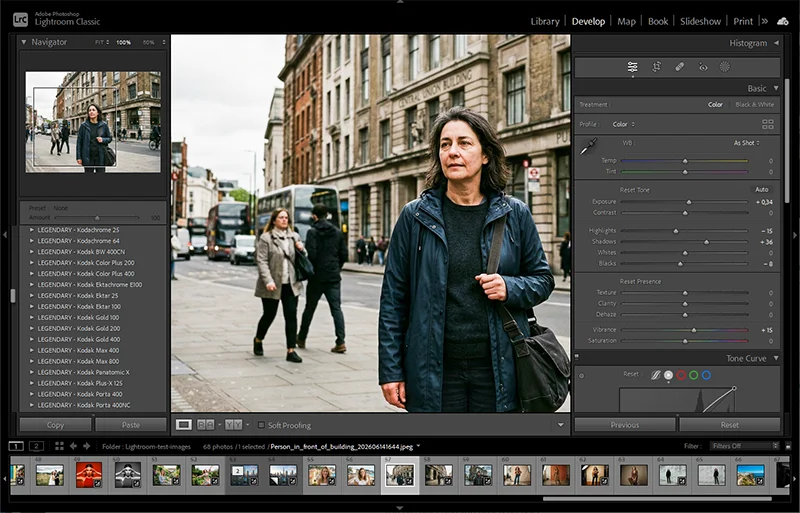
Lightroom Classic’s Develop module gives you complete control over every adjustment. The Library and Develop modules are where most professional workflows live. You’ll spend most of your time in two places:
- The Library module for importing, culling, and organizing photos
- The Develop module for all editing and color work
The catalog system is the learning curve. Classic organizes your library inside a local database called a catalog. It doesn’t contain your photos. It tracks where they are and what you’ve done to them. Once you understand this, Classic becomes very fast and organized. Before you understand it, moving a photo in Finder or Windows Explorer can break the link and cause “missing file” errors.
For a full explanation of how Classic works and who it’s built for, see What Is Lightroom Classic? (and Who Actually Needs It).
What Classic gives you that Lightroom (CC) doesn’t:
- Tethered shooting
- Plugin support (Topaz, Nik Collection, gallery export integrations)
- Print module with soft proofing
- Book module
- Full EXIF and IPTC metadata editing
- Smart Collections for rule-based auto-organization
- Local file storage with no recurring cloud cost

My pro tip: Keep your catalog on your internal SSD (fastest) and your photos on an external drive. Back up the catalog separately from your photos.
03.
If Your Answer Is Lightroom (CC)
Lightroom (CC) is the right app if you want mobile editing, don’t need tethering or plugins, and your archive fits within the cloud storage included with your plan. Here’s what to expect.
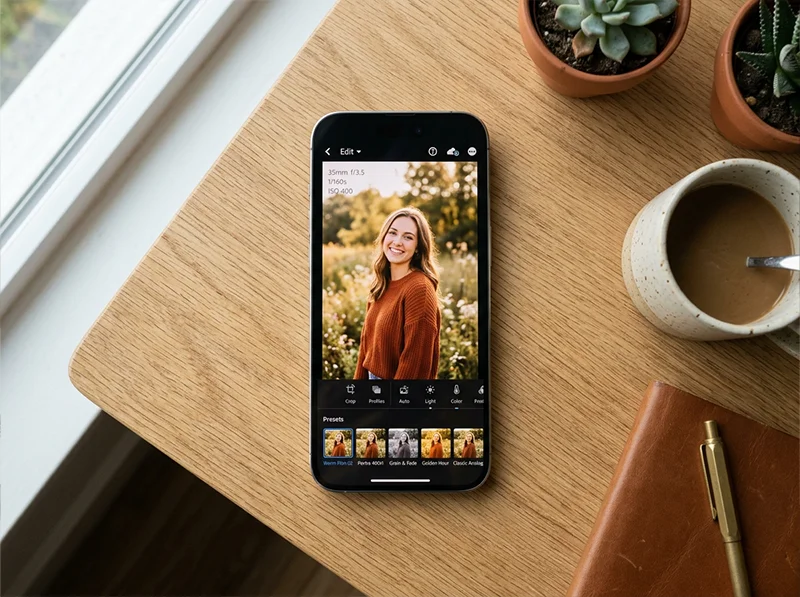
Lightroom (CC)’s mobile app gets your preset library onto your phone automatically, with no extra setup required. The interface is one screen. Photos on the left, editing tools on the right. No modes to switch between, no module system to learn. You can be editing your first photo in under five minutes.
Everything syncs. Import on desktop, edit on your iPad, export from your phone. The same library, the same edits, everywhere you’re signed in.
Presets sync automatically to mobile. This is one of the clearest practical advantages. If you install a set of Lightroom film presets on your desktop, they appear in the Lightroom mobile app within minutes.
Customers of Legendary Presets who use Lightroom (CC) are typically editing on their phones within twenty minutes of downloading a new pack. In Classic, getting presets onto mobile requires extra steps most people find frustrating.
What Lightroom (CC) gives you that Classic doesn’t:
- Full cross-device sync (desktop, mobile, web)
- Automatic preset sync to mobile
- AI semantic photo search (find photos by content: “golden hour portrait”, “dog on beach”)
- Built-in guided tutorials in the Learn section
- Simpler interface with no module switching
04.
The Preset Question: Which App Handles Film Looks Better?
Both apps fully support presets. The editing tools for applying a preset and adjusting the result are identical. The difference is what happens before and after that moment.
Applying a preset:
- Both apps: identical. Select a preset, it applies. Adjust with the same sliders.
Installing presets:
- Lightroom (CC): presets install through the Presets panel and sync to mobile automatically
- Lightroom Classic: presets install in the Develop module and stay on your desktop unless you take extra steps
Using presets on mobile:
- Lightroom (CC): your full preset library is on your phone automatically
- Lightroom Classic: you need to sync specific photos to mobile manually; presets don’t travel
Batch applying a preset across a full shoot:
- Lightroom Classic has an edge here. The Library module’s sync and Auto Sync tools let you apply one preset to hundreds of photos simultaneously, with more control over exactly which settings carry across.
- Lightroom (CC) can sync edits across a batch, but the workflow is less direct.
If your editing style is: apply a film look, fine-tune per image, export, both apps handle this equally well on desktop. If mobile editing is part of your workflow, Lightroom (CC) wins clearly. If you batch 400 images from a client shoot and need to apply consistent grades across all of them, Classic is faster.
See How to Install Lightroom Presets for the step-by-step process for both versions.
05.
What About Using Both?
Most working photographers do. The two apps are not mutually exclusive and both come with the same subscription.
Many working photographers use Classic for desktop work and Lightroom mobile for quick edits and sharing. Both are included in the same subscription. A common setup: Lightroom Classic for all serious desktop editing (client work, batch editing, tethered shoots, print output), and the Lightroom mobile app for quick edits and sharing on the go. The mobile app is part of the Lightroom (CC) ecosystem, so you get it automatically with any Adobe Photography subscription.
You can also sync selected collections from Classic to Lightroom mobile, useful if you want to show a client a gallery on your phone after a shoot. It’s not as seamless as full Lightroom (CC) sync, but it works.
06.
Which Lightroom Should I Use? Quick Reference
Your situation Use this app You shoot tethered in a studio Lightroom Classic You use export plugins (Pixieset, SmugMug, etc.) Lightroom Classic You manage more than 1TB of photos Lightroom Classic You batch-edit 200+ photos from a single shoot Lightroom Classic You print fine art or deliver print packages Lightroom Classic You edit on your phone or switch devices Lightroom (CC) You want presets synced to mobile automatically Lightroom (CC) You are just starting out Lightroom (CC) You shoot casually and don’t need catalog management Lightroom (CC) You want your photos backed up automatically Lightroom (CC) 07.
Which Lightroom Should I Use? (Featured Snippet)
Use Lightroom Classic if you shoot tethered, use third-party plugins, manage more than 1TB of photos, or need the Print module for fine art output. Use Lightroom (CC) if you want mobile editing, preset sync across devices, or a simpler learning curve. Both apps are included in the same Adobe subscription at $9.99/month. You can run both simultaneously.
08.
The Mistake Most Photographers Make When Choosing
Most people pick Classic because they want to think of themselves as serious photographers. Not because they actually need tethering, plugin integrations, or a multi-client catalog system.
That’s the wrong way to make this decision.
The right question is: what does my actual day-to-day workflow look like right now? Not the workflow you’re planning to have someday, or the one a photographer you admire uses. Your current one.
If you import photos from a weekend shoot, apply a film preset, and export to share or deliver to a client folder, that workflow runs faster in Lightroom (CC). Classic gives you more tools than you need for that job, and every extra tool is something to navigate around.
I made this mistake myself. I spent my first months learning Classic’s catalog system before I’d developed a consistent approach to editing. The catalog was organized perfectly. My photos were mediocre. The order was wrong.
My actual recommendation: start with whichever app matches the four questions above. If you pick Lightroom (CC) and later discover you need Classic’s features, switch then. The editing knowledge you build in Lightroom (CC) transfers completely. Nothing is wasted.
09.
FAQ
Can I switch from Lightroom (CC) to Classic later without losing my edits?
Yes. You can migrate your Lightroom (CC) library to a Classic catalog. Most edits carry over, though some organization structure may not transfer cleanly. Back up before migrating, and test with a small batch first.
Do I need separate subscriptions for Lightroom and Lightroom Classic?
No. Both apps are included in every Adobe Photography subscription. The Lightroom Plan costs $9.99/month (annual) and the Photography Plan (which adds Photoshop) costs $19.99/month (annual). You get both apps regardless of which plan you choose. (Source: Adobe Creative Cloud Photography plans)
Which version do professional photographers use?
Most professional photographers working in studios, at events, or on commercial shoots use Lightroom Classic. It’s the standard for tethered shooting, batch editing, plugin workflows, and print delivery. That said, a growing number of working professionals use Lightroom (CC) alongside Classic or as their primary tool, particularly those with mobile-first or travel-based workflows.
Which Lightroom is best for beginners?
Lightroom (CC). The single-screen layout, built-in tutorials, and automatic cloud backup make it significantly less intimidating than Classic. You can start editing within minutes of downloading it. If you want to build a foundation with presets and basic color editing, Lightroom (CC) is the faster path. See Lightroom Mobile Presets: The Complete Guide for a good starting point.
Is there a free version of Lightroom?
Lightroom Mobile has a free tier with limited features. For full desktop editing in either Lightroom (CC) or Classic, you need an Adobe subscription. Adobe offers a 7-day free trial so you can test both apps before committing.
Related Articles
- Lightroom vs Lightroom Classic: Which One Do You Actually Need?
- What Is Lightroom Classic? (and Who Actually Needs It)
- How to Install Lightroom Presets
- Lightroom Mobile Presets: The Complete Guide for iPhone and Android
- Lightroom Film Presets: The Complete Guide
Richard is a commercial and editorial photographer with over 15 years behind the lens. He’s shot on film and digital across three continents, and still keeps a Nikon F3 loaded with Kodak Portra on his desk. At LegendaryPresets, he leads preset development – studying actual film scans to make sure every stock behaves like the real thing.